Primary topic Mobile UX
WooCommerce 11.3.0 shipped on November 11, 2026, with a different feel for mobile product photos: the Product Gallery block now uses native scrolling and scroll snap. Images follow a shopper’s finger and quick flicks carry momentum. If your store uses this block, test the update on staging now, particularly if shoppers have struggled to move between photos; ship it after the gallery and purchase flow pass.
| Your product page | Action |
|---|---|
| Product Gallery block | Stage 11.3; test swipes and selection |
| Product Image Gallery + Add to Cart + Options | Plan and test block migration separately |
| Classic or third-party gallery | Keep configuration; test its own slider |
| Only one product image | Choose a multi-image test product |
Find the gallery your shoppers actually use
In Appearance > Editor, open the product’s assigned template and inspect List View. Product Gallery contains Thumbnails and Viewer; it can also sit inside a Single Product block. Check the templates used by both simple and variable products before choosing your test pages.
Product Image Gallery is the older block and does not support variation-image updates from Add to Cart + Options. For that pairing, migrate on staging if you need variation galleries. Since 11.1, its compatibility warning offers Use the Product Gallery block. Replacement uses default settings, so review layout and image cropping before saving. Treat this as a separate change from the version test: first establish how the existing template behaves, then test the replacement.
On a classic template, slider, zoom and lightbox behavior depend on theme support. A builder or extension may replace the gallery. Keep a working replacement’s configuration during the upgrade and test its own navigation; this block change is not a reason to rebuild that slider.
What actually changes when you swipe?
The native-scrolling fix merged on October 1. Previously, custom touch handlers decided when a drag should advance a photo. Now the browser moves the track and snaps it to a slide. The 11.3 release demonstration shows the resulting finger-following movement. This is shipped behavior in Product Gallery, rather than an experimental option to enable.
An IntersectionObserver connects the visible slide to thumbnail and arrow state. There is one deliberate exception during motion: after a thumbnail tap, the destination stays selected while intermediate photos pass. An interrupting swipe returns selection to the visible image. The September 24 before-and-after recordings and test plan provide a documented example and the sequence below.
Run one repeatable before-and-after test
Use staging with the same products, templates and settings before and after updating. Record the initial gallery order and selected image so a reset has a clear reference. Use an iPhone with Safari and an Android phone with Chrome as the default test pair; prioritize additional devices that matter in your store’s traffic. The upstream author reports Android verification, which is not a promise about every phone.
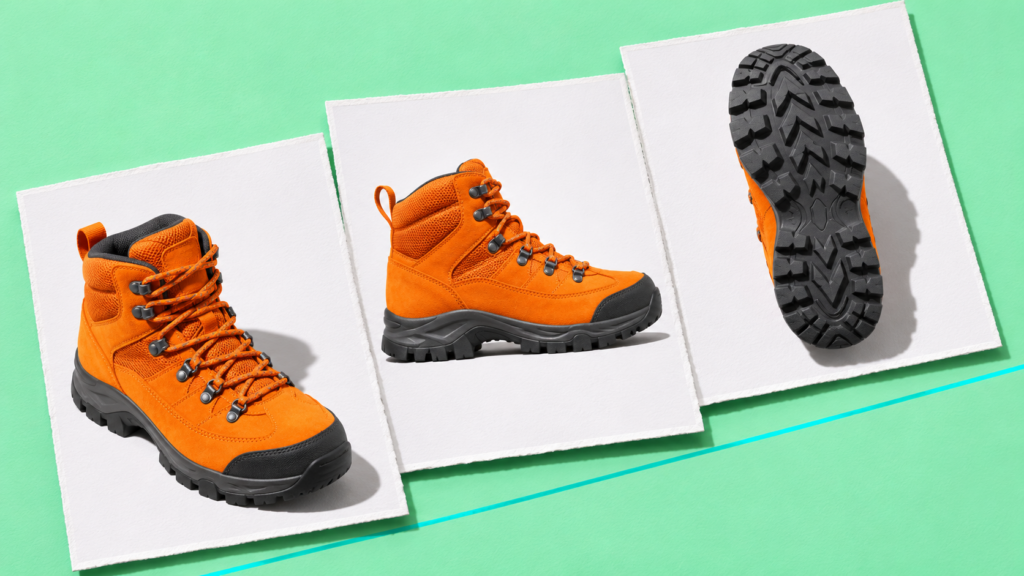
- Prepare a simple product with three distinct photos. For example, use a boot’s front view, sole and heel, in that order. Set the front view as Product image and add the other two through Products > All Products > Product gallery > Add product gallery images. The main Product Image is already the first gallery item; do not add it twice.
- Drag slowly, then flick. Watch for movement under the finger, a clean resting position and the correct selected thumbnail. Also scroll the page vertically with your finger starting on the gallery: shoppers must be able to reach the size and purchase controls below it.
- Tap from the first thumbnail to the last. Let the jump finish, then repeat and interrupt it with a swipe. Judge the selection once it settles, using the outcomes in the figure. Use next/previous controls to check the return journey and their endpoint states.
- Switch a variable product and reset it. Use a product with distinct orange and black image sets. Choose orange, browse its photos, then choose black and browse again. Clear the options. Expect the parent product’s gallery to return, with the selected thumbnail and arrows consistent with the visible photo. Compare with your baseline and check the assigned variation images if the set is wrong.
Suppose the interrupted jump in this three-photo fixture stops on the sole, photo 2. If thumbnail 2 is selected, that check passes; the flick did not have to finish at the heel. If thumbnail 3 stays selected, hold the update for this template and investigate the mismatch. A passing simple product still needs the variable-product check: variation galleries became a standard feature in 11.1, and the new motion must work with their changing image sets.
Check resizing and a route without swiping
Rotate the phone after selecting a later image. The implementation realigns the selection when viewer width changes. It uses horizontal overflow and mandatory snap points, with a 0.51 visibility threshold to avoid selecting two half-visible slides. If you maintain custom gallery CSS, compare overrides affecting overflow, widths and snap behavior before changing JavaScript. For a right-to-left storefront, include thumbnail jumps in that layout; the scrolling code accounts for direction.
Keep visible thumbnails or next/previous buttons as the default. Check that each can be tapped without hitting its neighbor, and that the selected state is clear. A keyboard test alone does not establish a usable tap alternative: WCAG treats keyboard access and single-pointer alternatives separately. Native browser scrolling is exempt from the dragging requirement, but custom gesture handling can change that distinction.
Keep your existing zoom and pop-up settings unless the test exposes a problem. In the pop-up, test navigation, the close button, Escape and focus returning to the opener. On a keyboard, check that focus is visible and every photo is reachable. Repeat thumbnail navigation with reduced motion enabled: programmatic navigation uses instant movement for that preference. Do not require a visible smooth animation as the pass condition in that run.
If the store already uses video, add one check: select the clip and then swipe away. Only the selected gallery video should play. Video remains experimental, off by default and limited to uploaded media; leave it off during this upgrade if you do not use it. Enabling another feature would make a new failure harder to isolate.
If the gallery fails, isolate the first mismatch
Record the staging URL, product, selected variation, phone, browser version and exact gesture. Make a short recording showing both the large image and its highlighted thumbnail. “The heel stays selected after the sole stops moving” gives the template owner something reproducible; “the swipe feels wrong” does not.
On staging, compare the same product in an uncustomized Product Gallery with its real template. If only the real template fails, change one gallery-related theme override or extension at a time to locate the conflict. If both fail, report the minimal case to WooCommerce. Keep the failing configuration available for diagnosis and defer the affected rollout. Desktop emulation helps locate a layout problem; return to the phone to verify the gesture fix.
Finish the update before reopening checkout
WooCommerce 11.3 requires a database update. Back up the database and wp-content, test the intended software versions on staging, and deploy that same update set. After updating the plugin, use Update WooCommerce Database when prompted. View progress opens Scheduled Actions; wait for the database-update-complete notice before treating the upgrade as finished.
During the live maintenance window, prevent checkout while files and database updates run. Before reopening, check the product gallery, cart and a test purchase, including the shipping, tax, payment and email behavior the store relies on. If a failure blocks buying, keep checkout closed and follow the store’s recovery procedure.